




Settings
Settings is where you tailor Teampilot to how you work. Open it from the left settings navigation, where you will find sections for My Account, AI Profile, Team, Members, Provider, Billing, Reports, Skills, Snippets, and Integrations. Personal settings apply only to you; team-wide settings such as providers are reserved for admins.
My Account
Your account settings control how you appear to the rest of your team and how you sign in. Open My Account from the settings navigation to update your profile.
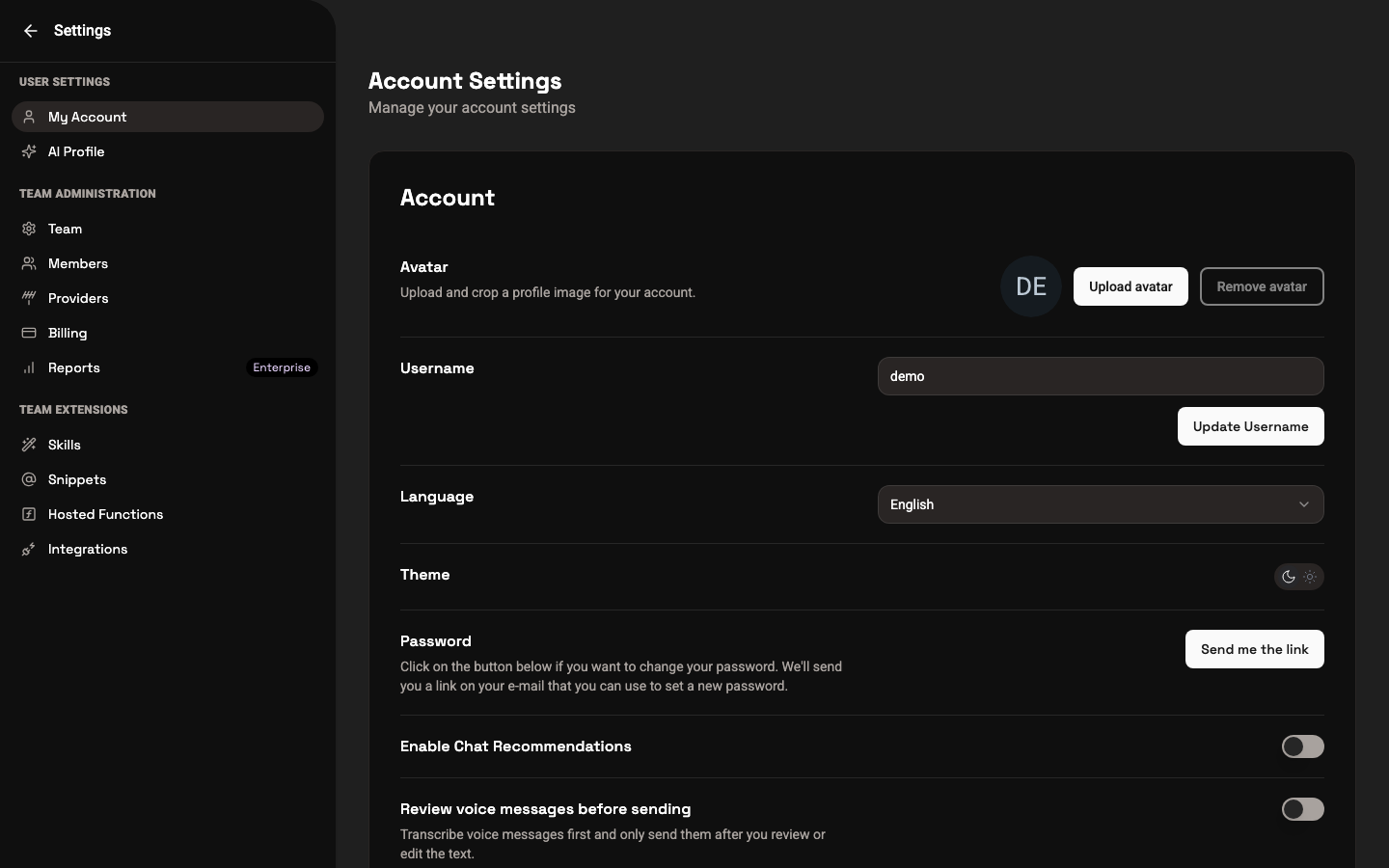
- Avatar - upload a picture so teammates can recognize you in shared chats and presence indicators.
- Username - the display name shown across the app.
- Language - choose between English and German for the entire interface.
- Theme - switch between light and dark mode.
- Password - update the password you use to sign in.
- 1Open My Account from the settings navigation.
- 2Edit your avatar, username, or other fields.
- 3Save your changes - they apply immediately.
AI Profile
Your personal AI Profile is a place to tell the AI about yourself - your role, your preferences, how you like answers formatted, and any context that should carry across your chats. The AI reads it automatically and uses it to personalize responses, so you do not have to repeat yourself in every conversation.
Keep it concise and practical. Good things to include are your job role, the tools and languages you work with, your tone preferences, and recurring constraints (for example "always answer in English" or "prefer bullet points").
AI Memory
Writing a profile from scratch is optional. Teampilot can generate AI Profile suggestions for you by analyzing your recent team chats and proposing facts and preferences worth remembering. You stay in control: review each suggestion and apply only the ones you want.
- 1Open the AI Profile section in settings.
- 2Start the profile suggestion generation - Teampilot streams suggestions live from your recent chats.
- 3Review each proposed item.
- 4Apply the suggestions you like directly to your personal AI Profile, and discard the rest.
Provider Configuration
The Provider section is where the AI providers behind your team are configured. Admins can enable providers such as OpenAI, Anthropic, Azure, AWS Europe, Google Vertex AI, Mistral, and Perplexity. Which providers are active determines which of the 40+ models your team can pick in Chat.
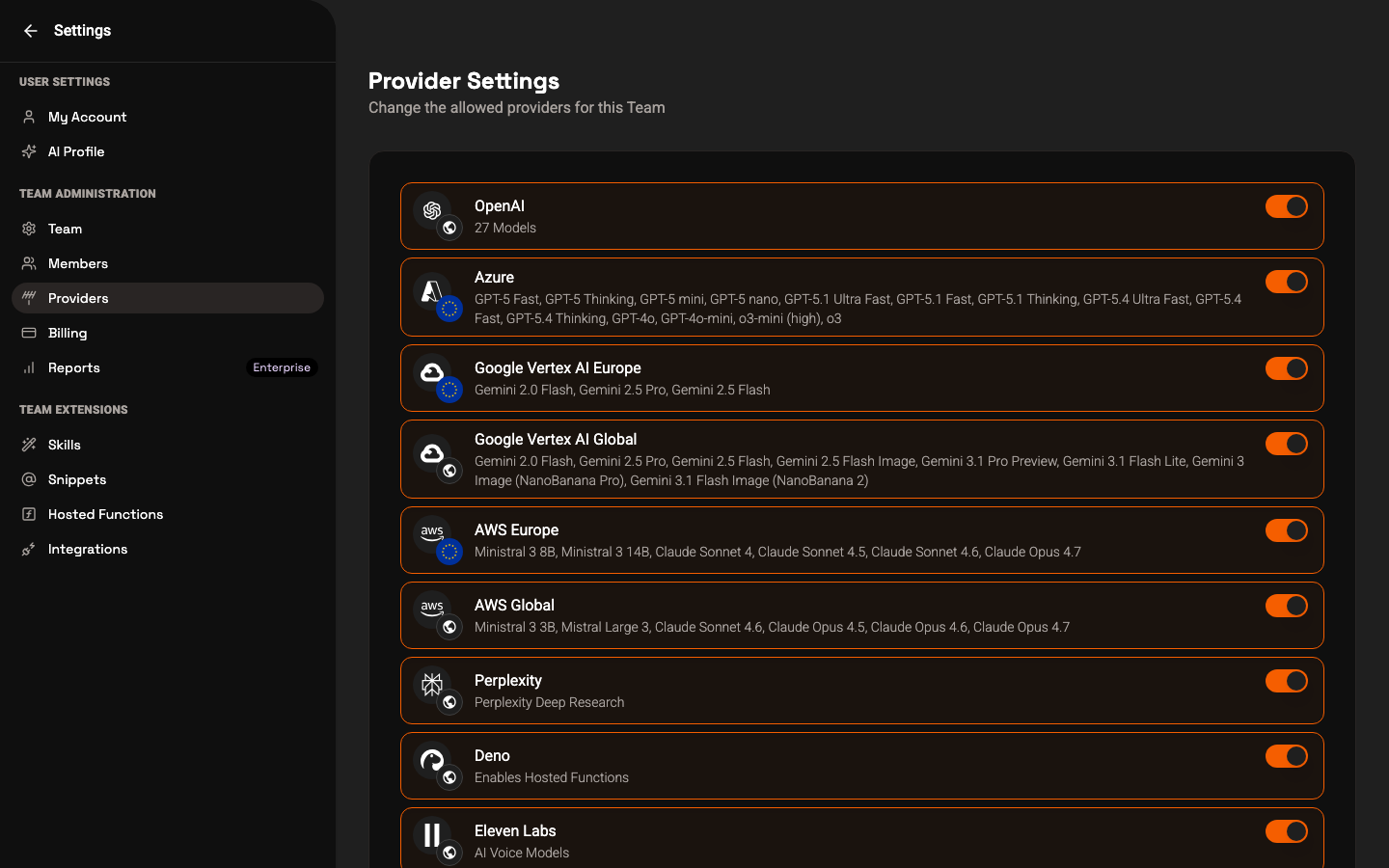
Dedicated EU providers - such as AWS Europe, Azure, and Google Vertex AI EU - are available for teams with strict data protection requirements, keeping processing within the EU. The provider chosen during Team onboarding is set up here and can be changed later.
Language and Theme
Teampilot is fully available in English and German. Switch the interface language under My Account, and your choice applies everywhere in the app.
You can also choose between light and dark mode. The theme setting lives in My Account, and you can reach it quickly from the actions in the sidebar as well.
- Language - English or German, switched in My Account.
- Theme - light or dark, also available from the sidebar quick actions.
Install as an App
Teampilot is a Progressive Web App (PWA), so you can install it on your device for quick access without the browser chrome around it. It opens in its own window and behaves like a native desktop or mobile app.
- 1Open Teampilot in a supported browser such as Chrome or Edge.
- 2Use your browser install action - for example the install icon in the address bar, or the browser menu entry to install or add Teampilot.
- 3Confirm the install. Teampilot now opens from your desktop, dock, or home screen in its own window.
Looking for team-wide setup instead? See Team for roles and invites, and Billing for seats and plans.