




Team Management
A team is the central organizational unit in Teampilot. Every team has its own members, settings, content, and budget. This page explains the available roles, how to invite and manage members, how to configure your team, and how to work across several teams from a single account.
Roles
Every member of a team has one of three roles. The role controls what a person can do across the whole team and whether they consume a paid seat. You can review and change roles on the Members settings page.
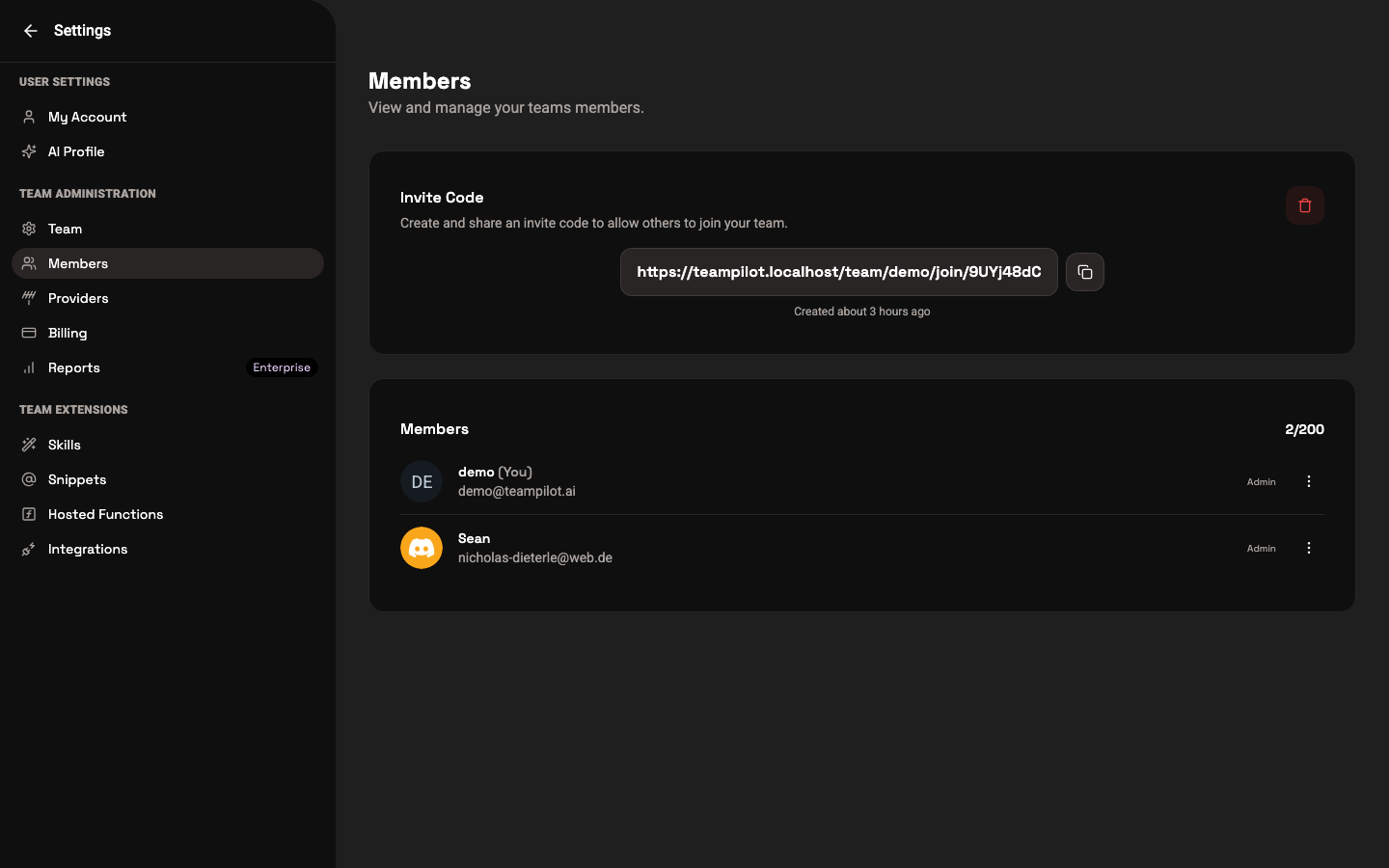
- Admin — Full control over the team. Admins manage members, team settings, providers, billing, snippets, and integrations.
- Member — Works normally: creates and runs chats, builds Launchpads and Projects, and uses all everyday features. A member occupies a paid seat.
- Viewer — Read-only access. Viewers can open and read content shared with them but cannot create or edit. Viewers are free and do not consume a paid seat.
Inviting members
Admins invite new people from the Members settings page. Each team has an invite code and matching invite link that you can share with the people you want to add.
- 1Open Settings and go to the Members page.
- 2Copy the invite code or the invite link shown at the top of the page.
- 3Send the link to the people you want to add to your team.
- 4When they open the link and sign in, they join your team and appear in the member list.
- 5Set each new person to the appropriate role: Admin, Member, or Viewer.
Only admins can manage members. From the member list, an admin can change a person's role or remove someone from the team.
Joining a team
You join a team by accepting an invite link created by an admin. Depending on the team configuration, you may also be able to join automatically based on your email domain.
- 1Open the invite link you received.
- 2Sign in with your account, or create one if you do not have it yet.
- 3Confirm that you want to join the team.
- 4You now appear in the team and can start working right away.
Team settings
Admins configure the team on the Team settings page. Here you set the team name and control the default access level applied to newly created content.
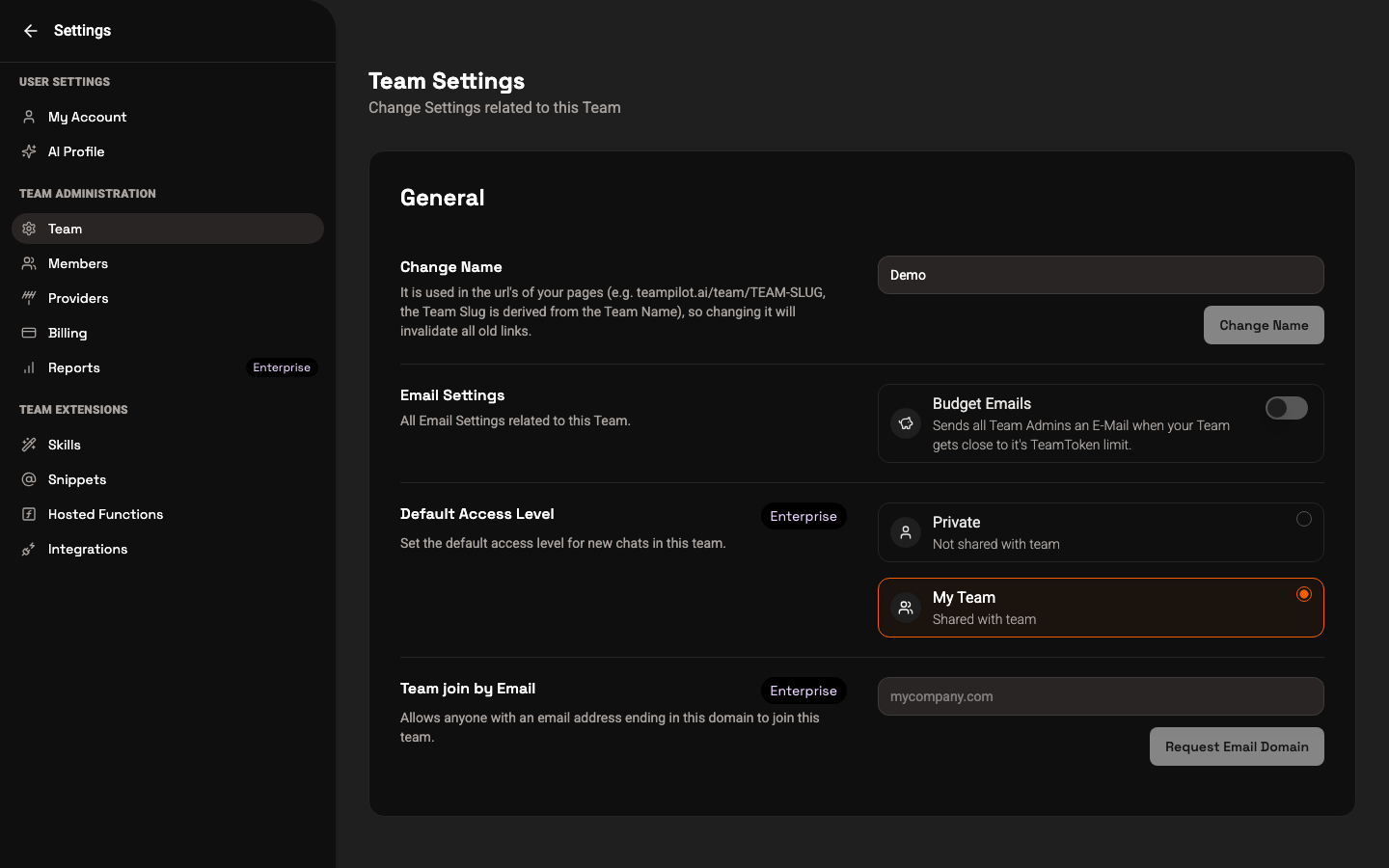
- Team name — The display name shown throughout the app and in the team switcher.
- Email settings — Control team-related email notifications.
- Default access level — The access level new chats receive by default. This ties into how content is shared; see Sharing and Permissions.
These settings are admin-only. Members and viewers do not see the Team settings page.
Working with multiple teams
A single account can belong to several teams at once. Each team keeps its own members, content, settings, and budget completely separate from the others.
Switch between your teams using the team switcher in the top-left of the app. Selecting a different team loads that team's chats, launchpads, projects, and settings. Your role can differ from team to team — for example, you might be an admin in one team and a member in another.
Onboarding and providers
When you create a new team, Teampilot guides you through a short setup flow. During onboarding you choose which AI providers your team uses, so the team is ready to chat immediately.
You can revisit and change these choices at any time. Admins manage the enabled AI providers on the Provider settings page, including dedicated EU providers for strict data-protection requirements. See Settings for provider configuration and other team-wide options.
For seats, the monthly token budget, and how usage is counted across your team, see Billing.