




Getting Started
Welcome to Teampilot, your team AI workspace. This guide walks you through what Teampilot is, how to find your way around the interface, and how to send your first message in just a few clicks.
What is Teampilot?
Teampilot is a team AI workspace where you and your colleagues work with AI in a familiar chat interface. Instead of every person juggling their own tools and accounts, your whole team shares one place to chat with AI, build reusable assistants, organize work, and collaborate in real time.
Every chat starts in Smart Mode, where the AI automatically decides when to use tools like web search or image generation - so you can simply ask a question and get a useful answer. Behind the scenes you have access to 40+ models from OpenAI, Anthropic, Google, Mistral, Perplexity, and more.
Who it is for
Teampilot is built for teams of any size that want to use AI productively together. A few of the things you can do:
- Chat with leading AI models, search the web, generate images, and analyze uploaded files - see Chat.
- Build preconfigured AI assistants for recurring tasks with Launchpads.
- Group related conversations and share access with Projects.
- Insert reusable text across the team with Snippets.
- Share chats with teammates or external people and collaborate live - see Sharing.
The Interface
The Teampilot workspace is organized into three areas: the left sidebar for navigation, the center chat area where conversations happen, and the right Cowork sidebar for skills and files.
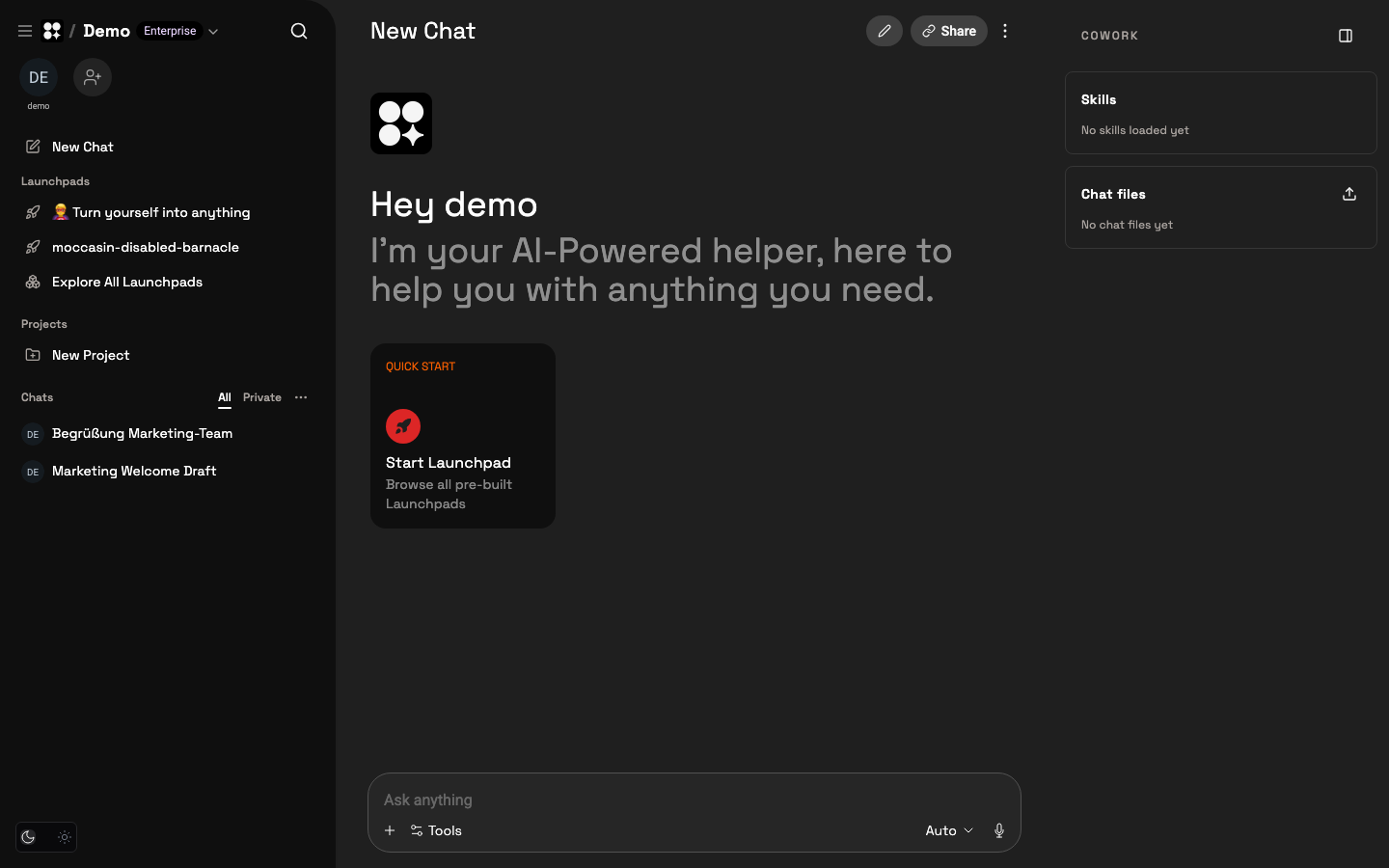
Left sidebar
- New Chat - start a fresh conversation at any time.
- Launchpads - open the gallery of preconfigured AI assistants. See Launchpads.
- Projects - folders that group related chats and carry their access rules. See Projects.
- Chats - your recent conversations, where you can pin important ones to the top or archive finished ones.
Center chat area
This is where you read and write messages. A new chat shows a greeting and the Ask anything composer at the bottom - type your message there and press Enter to send.
Right Cowork sidebar
The Cowork sidebar holds Skills and Chat files. Load a skill to give the AI extra capabilities, or attach files so it can use them as context for the current conversation. See Chat for details.
Your First Chat
Starting a conversation takes just a few seconds. Chats are created and titled automatically, so there is nothing to set up first.
- 1Click New Chat in the left sidebar (or just start typing in the composer of the current empty chat).
- 2Type your question or request into the Ask anything box at the bottom.
- 3Press Enter to send. The AI replies in Smart Mode, automatically using web search, image generation, or other tools when they help.
- 4Continue the conversation, or pick one of the follow-up recommendations that appear after each reply.
Teams
In Teampilot, a team is the central organizational unit. Each team has its own members, settings, launchpads, projects, and content. Everything you create lives inside the team you are currently working in.
One account can belong to several teams - for example a company team and a separate client team. You switch between them with the team switcher at the top left of the sidebar, and your chats, projects, and settings update to match the team you select.
Teams use three roles: Admin (full control over settings), Member (works normally and uses a paid seat), and Viewer (read-only access, free, does not consume a paid seat). For inviting people, roles, and settings, see Team Management.
Language and Theme
Teampilot is available in English and German, and supports both a light and a dark appearance. You can change either at any time.
- Language - switch between English and German in your account settings.
- Theme - choose light or dark mode, also reachable from the quick actions in the sidebar.
These preferences are personal to your account and apply across every team you belong to. You can manage them, along with your profile and password, in Settings.
Find Anything
The command palette is the fastest way to move around Teampilot. From a single search box you can jump to chats, projects, launchpads, documents, and settings, or start something new.
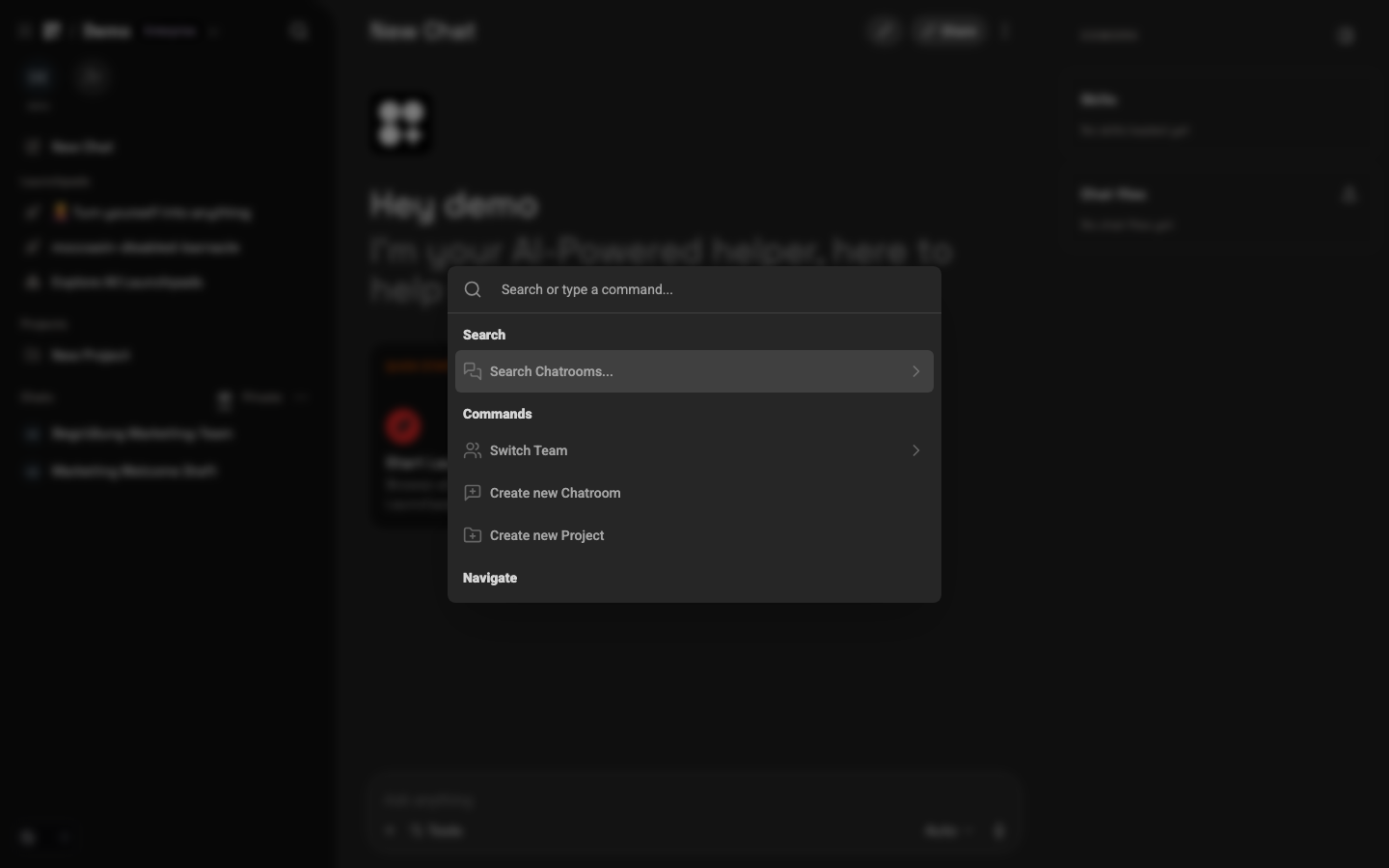
Cmd+K (or Ctrl+K on Windows) anywhere to open the command palette. From there you can reach everything: new chats, projects, documents, and settings.