




Projects
Projects are topic-based folders for your chats. Group conversations by theme, customer, or workspace, and let every chat inside a project automatically inherit its access rights.
What are projects?
A project is a folder that groups related chats together. Instead of scrolling through one long list of conversations, you can keep everything for a customer, a campaign, or a workstream in its own place.
Projects do more than tidy up your sidebar. Each project also carries its own permissions, and every chat inside it inherits those permissions. That means you set up access once on the project, and all of its chats follow the same rules - no need to share each conversation by hand.
- Keep chats grouped by topic, client, or team so they are easy to find.
- Share a whole body of work with the right people in one step.
- Start new chats directly inside a project so they are organized from the first message.
Creating a project
You create projects straight from the left sidebar. There is no separate projects list page - the New Project button opens a small dialog where you name your project.
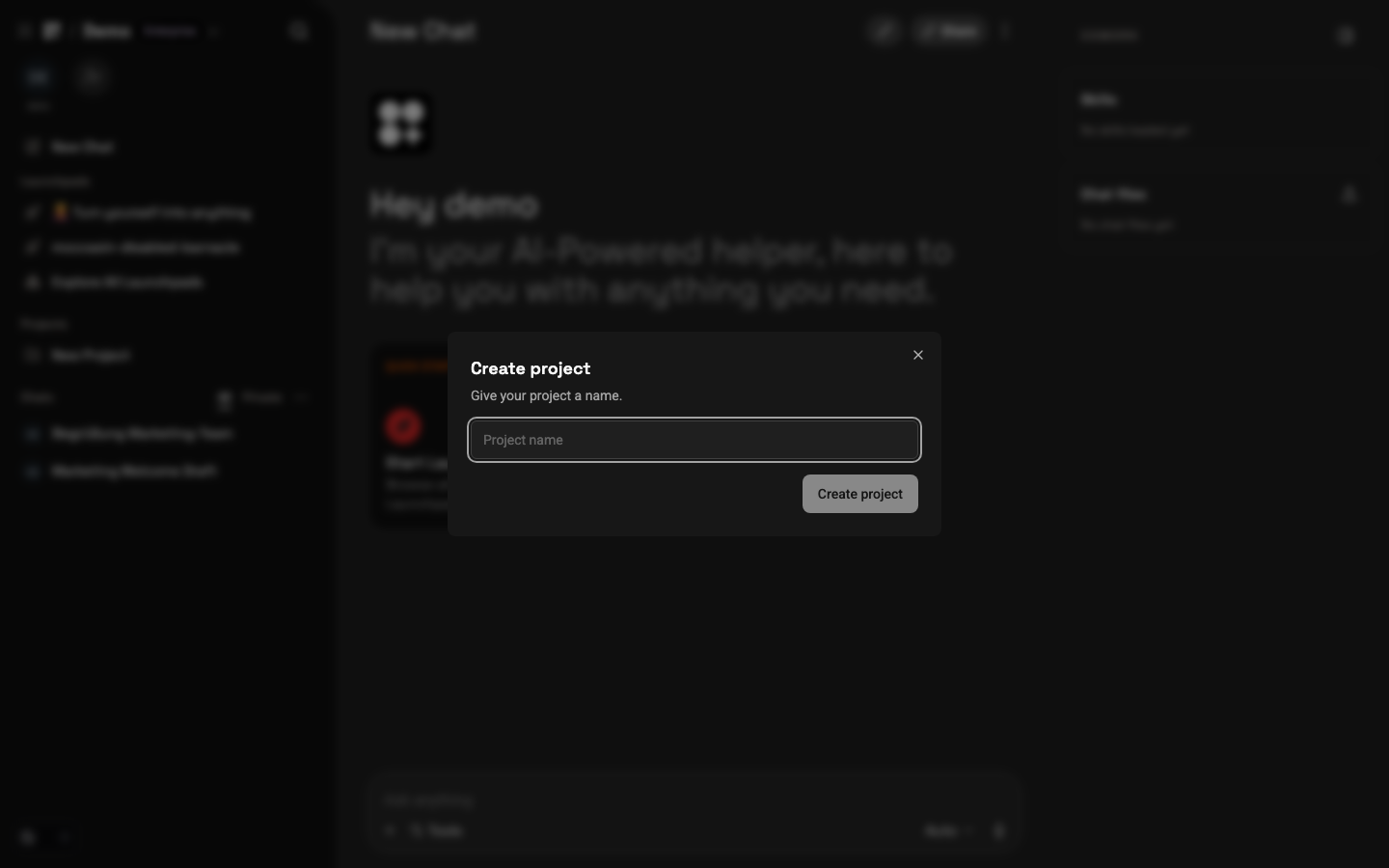
- 1In the left sidebar, find the Projects area and click New Project.
- 2Enter a clear, descriptive name for the project in the Create project dialog.
- 3Confirm to create it. The new project appears in your sidebar right away.
- 4Open the project to start chats inside it or move existing chats into it.
Cmd+K to open the command palette and jump straight to a project, chat, or setting without hunting through the sidebar.Organizing your chats
Once a project exists, there are two easy ways to keep your work grouped inside it.
- Start new chats inside the project: open the project first, then begin a chat. It belongs to the project from the very first message.
- Move existing chats in: drag and drop a chat from your chat list onto a project to file it there.
Grouping conversations this way keeps related context together and makes long-running work much easier to pick back up. To learn more about working inside a conversation, see Chat.
Project permissions
Every project has its own access control with three roles. You can assign these roles to individual users or to entire groups, so the right people get exactly the access they need.
- Owner: manage permissions and delete the project.
- Editor: create chats in the project and move chats into it.
- Viewer: read the chats inside the project.
For a complete overview of how roles work across projects, launchpads, and chats, see Permissions. To manage who is on your team in the first place, see Team Management.
Inherited access
The biggest advantage of projects is inherited access. Chats inside a project automatically take on that project's permissions - you do not share each chat individually.
When you set a chat's team access to Project, that chat follows whatever access the project grants. Add a new editor to the project, and they immediately gain access to all of its chats. Remove someone, and their access goes away across the project just as quickly.