




Chat
Chat is the heart of Teampilot. Ask questions, draft text, and analyze data in a familiar chat interface where the AI automatically reaches for the right tools. This page walks you through everything you can do in a conversation.
Overview
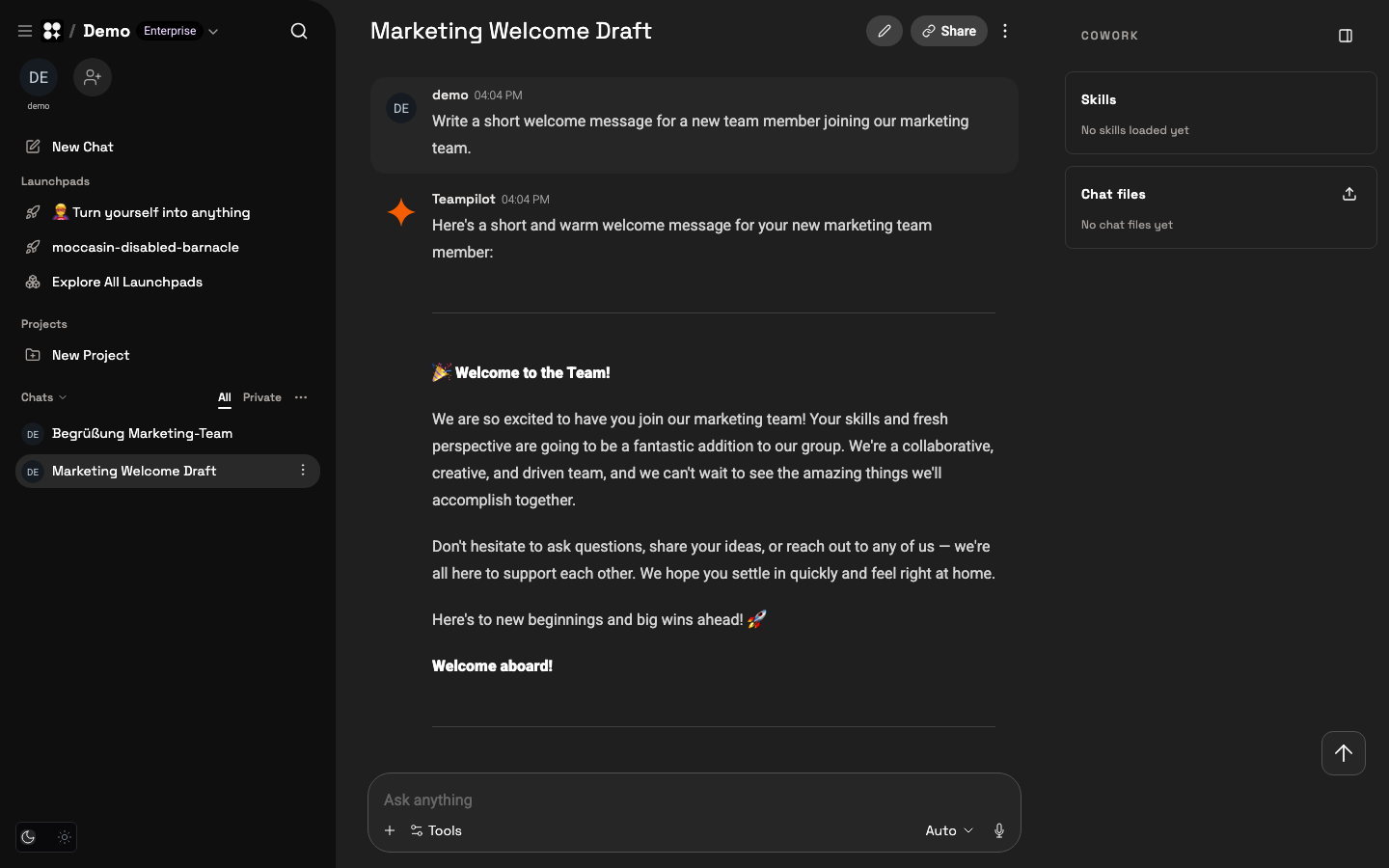
Every conversation in Teampilot happens in a chat. When you send your first message, a new chat is created and titled automatically based on what you ask, so your sidebar stays organized without any manual naming.
By default every chat runs in Smart Mode (also shown as Auto). In Smart Mode the AI decides on its own when to search the web, generate an image, or read an uploaded file - you simply describe what you need in plain language.
Sending messages
You write to the AI in the composer at the bottom of the screen - the Ask anything box. Starting a conversation takes just a few steps.
- 1Click New Chat in the left sidebar, or simply start typing in the Ask anything box.
- 2Enter your question or instruction. Press Enter to send, or Shift+Enter to add a line break.
- 3Wait for the response to stream in. You can keep reading while the AI is still writing.
- 4Continue the conversation by sending follow-up messages - the AI remembers the full context of the chat.
@ in the composer to browse and insert Snippets - shared text blocks your whole team can reuse for prompts, brand guidelines, or standard context.Smart Mode and tools
In Smart Mode the AI picks the right tool for the job automatically. You can also open the Tools menu in the composer to see what is available and turn specific tools on for a message.
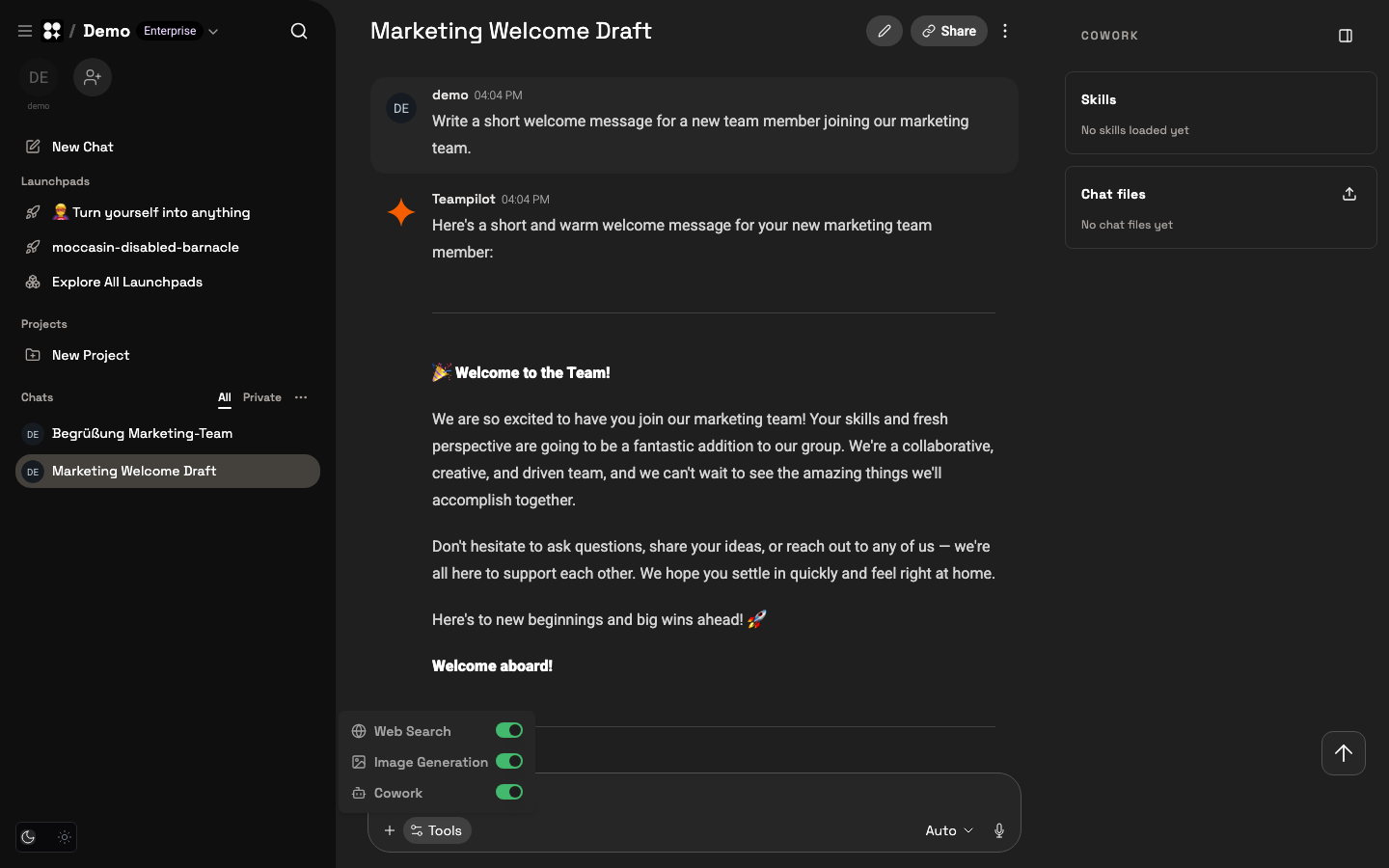
- Web Search - when current information is needed, the AI searches the web and returns answers with citations you can click through.
- Image Generation - describe an image and the AI creates it directly in the conversation.
- File Uploads - drop PDFs, images, Office files, or text files into the chat. The AI reads the content and answers questions about it; OCR is supported for scanned documents.
- Voice in and out - use speech-to-text to dictate your message, and have responses read back to you with text-to-speech.
AI models
Teampilot gives you access to 40+ models from OpenAI, Anthropic, Google, Mistral, Perplexity, and more. Smart Mode chooses a capable default, but you stay in control.
To switch models, use the model control (labeled Auto in Smart Mode) near the composer and pick a different model. You can change models mid-chat - the next message uses your new choice while the conversation keeps its full history.
Editing and branching
You are not locked into a single thread. Teampilot lets you refine a question or explore an alternative direction without losing your original conversation.
- Edit a message - change a message you already sent and resend it as a variant. The AI answers again based on your revised wording.
- Branch a chat - split off a new conversation from any earlier message to explore a different path while keeping the original chat intact.
Follow-up recommendations
After each response the AI suggests relevant follow-up questions so you can keep moving without thinking up the next prompt.
- 1Read the recommended follow-ups shown beneath the AI response.
- 2Click a recommendation to send it as-is.
- 3Hold Shift while clicking to load the suggestion into the composer and edit it before sending.
Ask about this platform
In an internal Cowork chat, the built-in platform-help skill helps with questions about the platform: Skills, Launchpads, Projects, settings, permissions, and choosing the right feature. Ask, for example, "When should I use a Skill instead of a Launchpad?" or "Where do I change my language?" The AI can load the relevant guidance when your question needs it.
If the AI cannot resolve your platform question or finds a documentation gap, it can offer to report it to the platform operators. It shows you the exact summary first and sends only after you explicitly agree. The report includes that summary and the platform name; your chat history and files are not attached automatically. You can edit or decline the draft.
The Cowork sidebar
The Cowork sidebar on the right gives the AI extra capabilities and context for the current chat. It has two parts: Skills you can load, and Chat files you can attach.
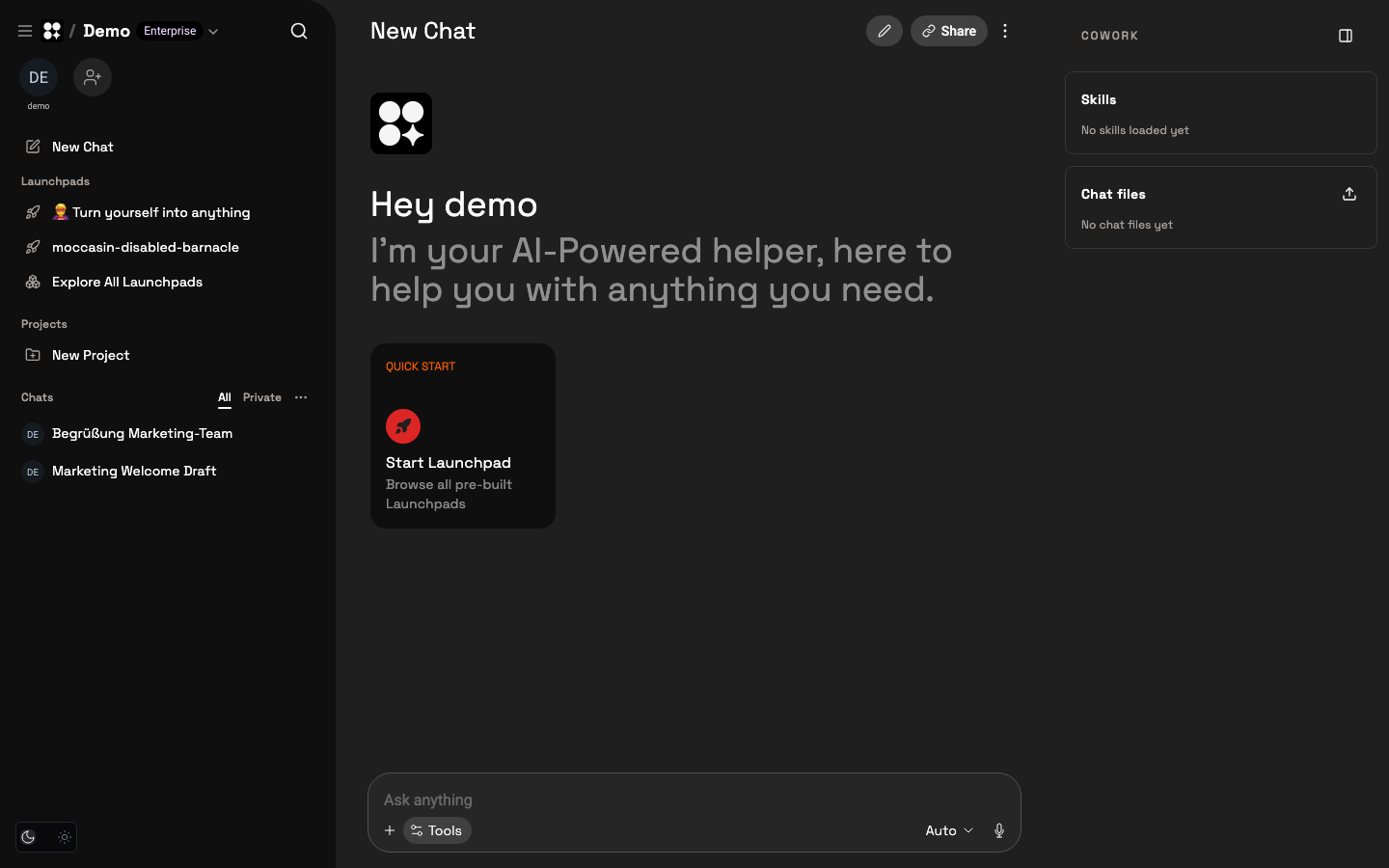
- Skills - load a skill to give the AI a specific capability for this chat.
- Chat files - attach files so the AI can use them as context throughout the conversation.
To remove an uploaded or generated file, click the trash icon next to it in Chat files and confirm. The icon is available with team and chat write access and remains visible while the preview is open. Deleting removes the file from this chat and its message attachments; existing messages remain. This cannot be undone. With Cowork enabled, you can also ask the AI to delete a specific chat file, for example: "Delete report.pdf from this chat." Project files and copies in other chats are separate.
Separately, Launchpads marked as Callable as Agent can be selected in the calling Launchpad’s function picker for sub-tasks. Agent calls are independent of Cowork mode.