




Snippets
Snippets are saved pieces of text that everyone on your team can reuse. Instead of rewriting the same prompt, brand guidelines, or boilerplate over and over, you save it once as a snippet and insert it into the composer with a quick @ keystroke.
What are snippets?
A snippet is a named, reusable block of text shared across your team. Snippets are perfect for prompt templates, recurring instructions, brand or tone-of-voice guidelines, legal disclaimers, standard email openers, or any context you find yourself typing again and again.
Snippets live in your team library, so once someone creates one, every teammate can use it. This keeps your prompts consistent and saves everyone from copying and pasting the same text between documents.
- Reusable - write the text once and insert it as often as you like.
- Team-wide - shared with everyone in the team for consistent results.
- Fast - insert directly in the composer with a single
@keystroke. - Organized - group related snippets with optional categories.
Using a snippet
You insert snippets straight from the chat composer while you write. There is no need to open settings or switch screens.
- 1Click into the "Ask anything" composer in any chat.
- 2Type
@to open the snippet menu. - 3Keep typing to filter by name or category, or scroll the list to browse.
- 4Click a snippet (or press Enter) to insert its full text at the cursor.
- 5Edit the inserted text if you need to, then send your message.
@ anywhere in the composer instantly opens your team snippet library. It is the fastest way to drop in a prompt template without leaving the conversation.Snippets work everywhere the composer appears, including chats started from a Launchpad. The inserted text becomes part of your message, so you can combine several snippets or mix snippet text with your own wording.
Creating snippets
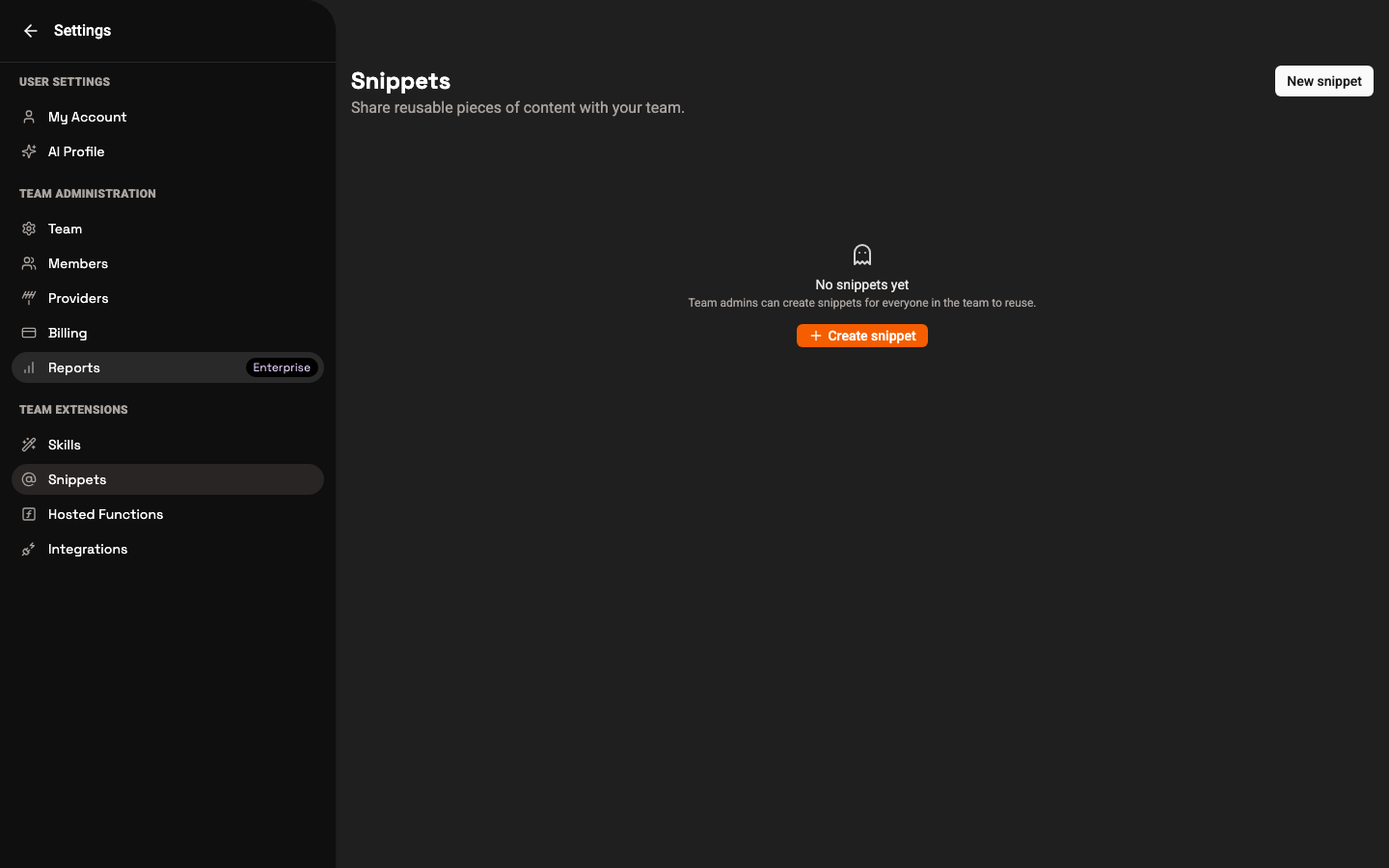
Manage snippets under Settings > Snippets. Members, admins, and support can create, edit, and delete team snippets. Viewers can read and use snippets.
- 1Open Settings and choose Snippets from the settings navigation.
- 2Click Create snippet.
- 3Enter a Name that teammates will recognize in the
@menu. - 4Optionally pick a Category to group the snippet with related ones.
- 5Write the Content - the text that gets inserted when the snippet is used.
- 6Optionally scope the snippet to a single Project, or leave it global for the whole team.
- 7Save to publish it to your team library.
Categories and project scope
As your library grows, categories keep it tidy. A category is just a label you assign when creating a snippet; snippets with the same category are grouped together, making them easier to find in the @ menu.
By default a snippet is global, meaning it is available to everyone in the team in every chat. You can instead scope a snippet to a specific Project. A project-scoped snippet appears alongside the global ones when you work inside that project, which is handy for context that only applies to one customer or workspace.
- Global snippets - available across the whole team, in any chat.
- Project snippets - tied to a single project and surfaced when working inside it.
- Categories - optional labels that group related snippets together.
For more on how teammates browse and insert snippets while chatting, see Chat.