




Launchpads
Launchpads are preconfigured AI assistants you build once and reuse across your team. Each Launchpad bundles its own instructions, greeting, model, tools, and permissions, so anyone with access can start a focused chat that already knows its job.
What are Launchpads?
A Launchpad is a saved configuration for the AI, tailored to a specific, recurring task. Instead of writing the same setup instructions at the start of every chat, you capture them once in a Launchpad and let your whole team start from that point. Think of a Launchpad as a specialist assistant: a support agent, a contract reviewer, a marketing copywriter, or an onboarding helper.
When you start a chat from a Launchpad, the conversation begins with its AI instructions, greeting, first recommendations, model, and tools already applied. This makes results consistent across the team and saves everyone from repeating setup work.
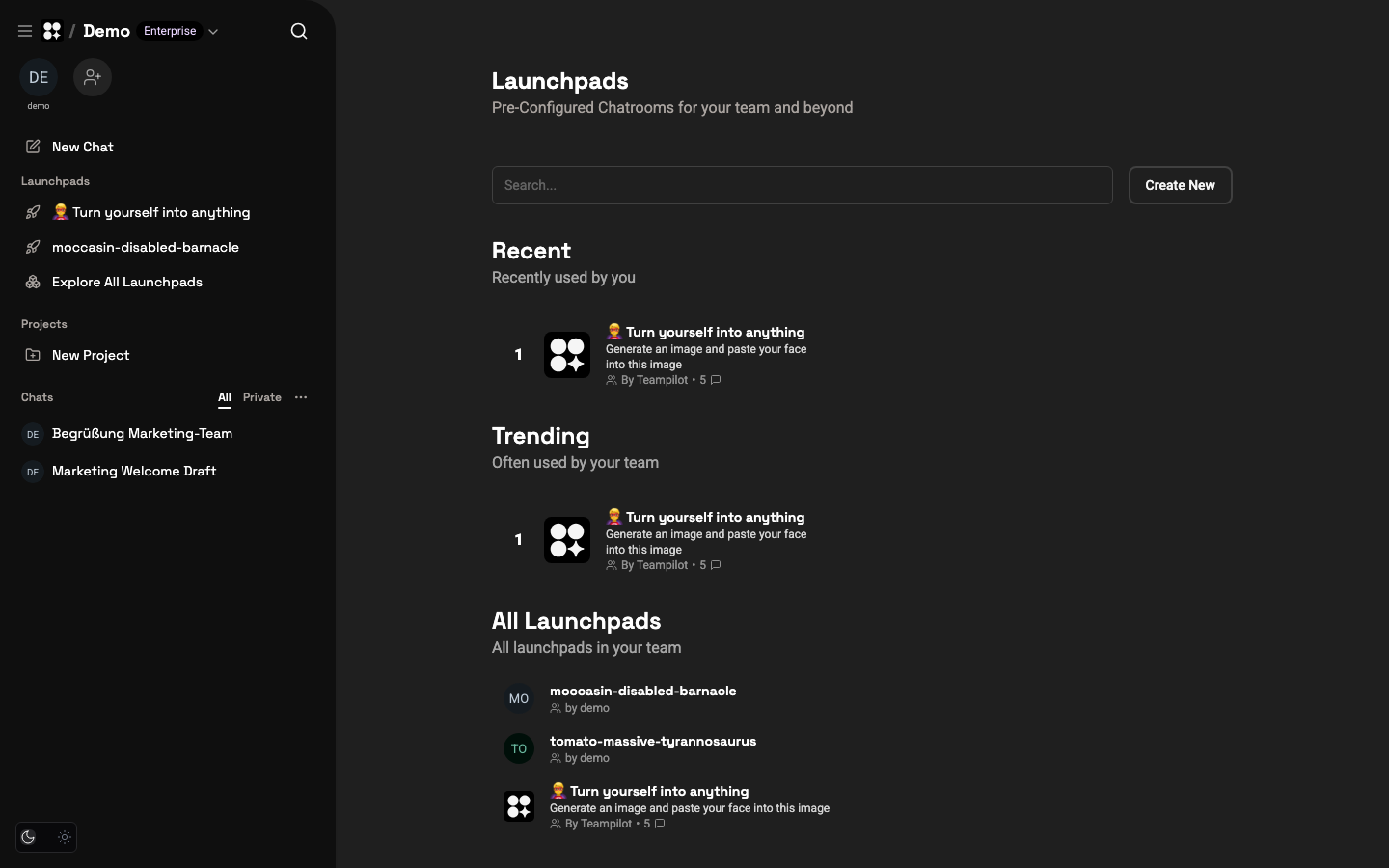
- Consistent results — everyone uses the same instructions and model for a task.
- Faster starts — no need to re-explain the context in every chat.
- Shareable — grant teammates access, or publish a Launchpad externally.
- Composable — Launchpads can call other Launchpads as sub-agents through selected functions.
Exploring Launchpads
Open the Launchpads page from the Explore All Launchpads link in the left sidebar. The gallery groups assistants into Recent (ones you used lately), Trending (popular across your team), and All Launchpads (the full library you have access to).
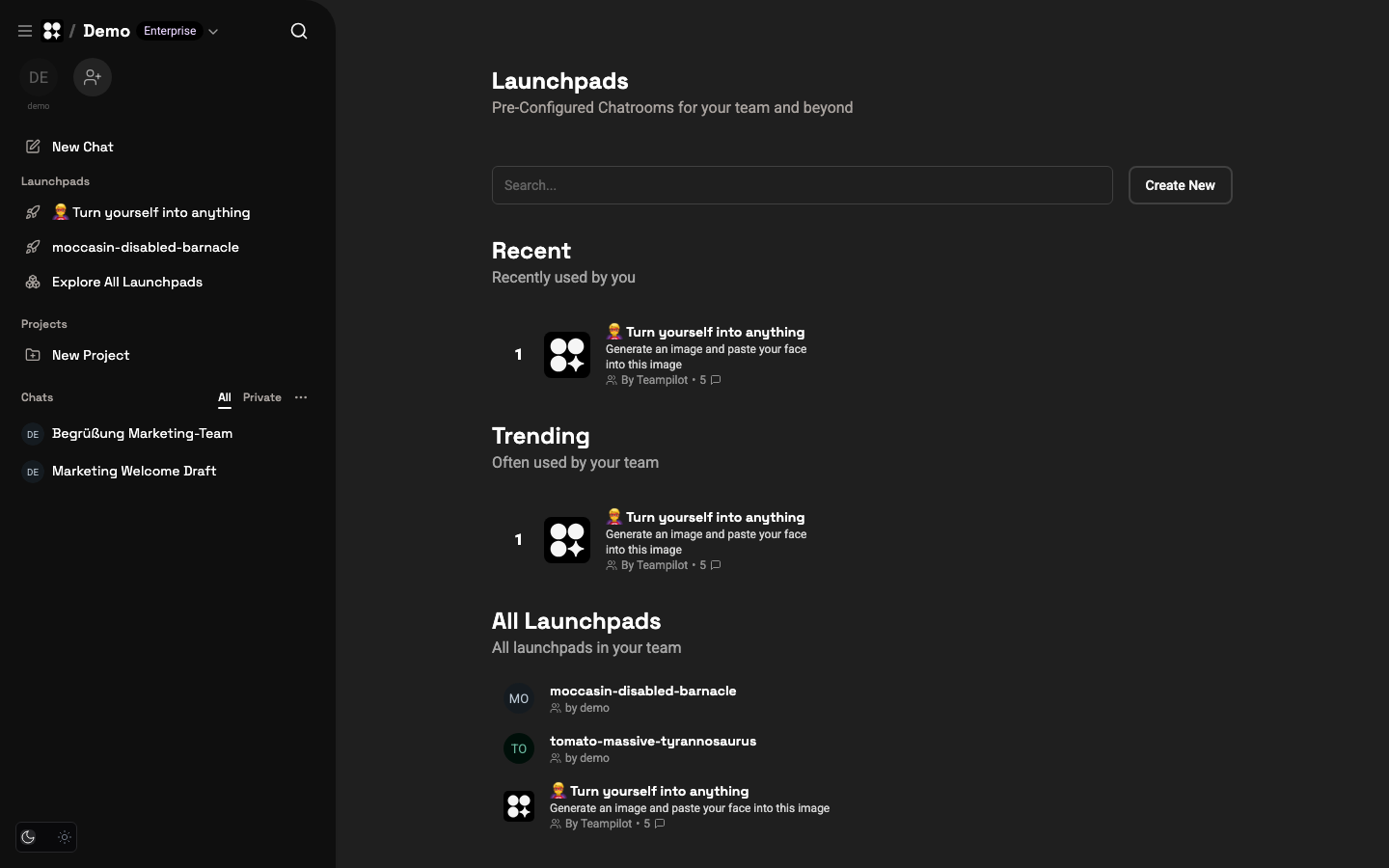
- 1Click Explore All Launchpads in the left sidebar.
- 2Browse the Recent, Trending, and All Launchpads sections to find an assistant.
- 3Select a Launchpad to open it.
- 4Start chatting — the assistant greets you and may suggest first prompts to get going.
Creating and configuring a Launchpad
Create a new Launchpad with the Create New button on the Launchpads page. You then land on the configuration screen, where every setting that defines the assistant lives in one place.
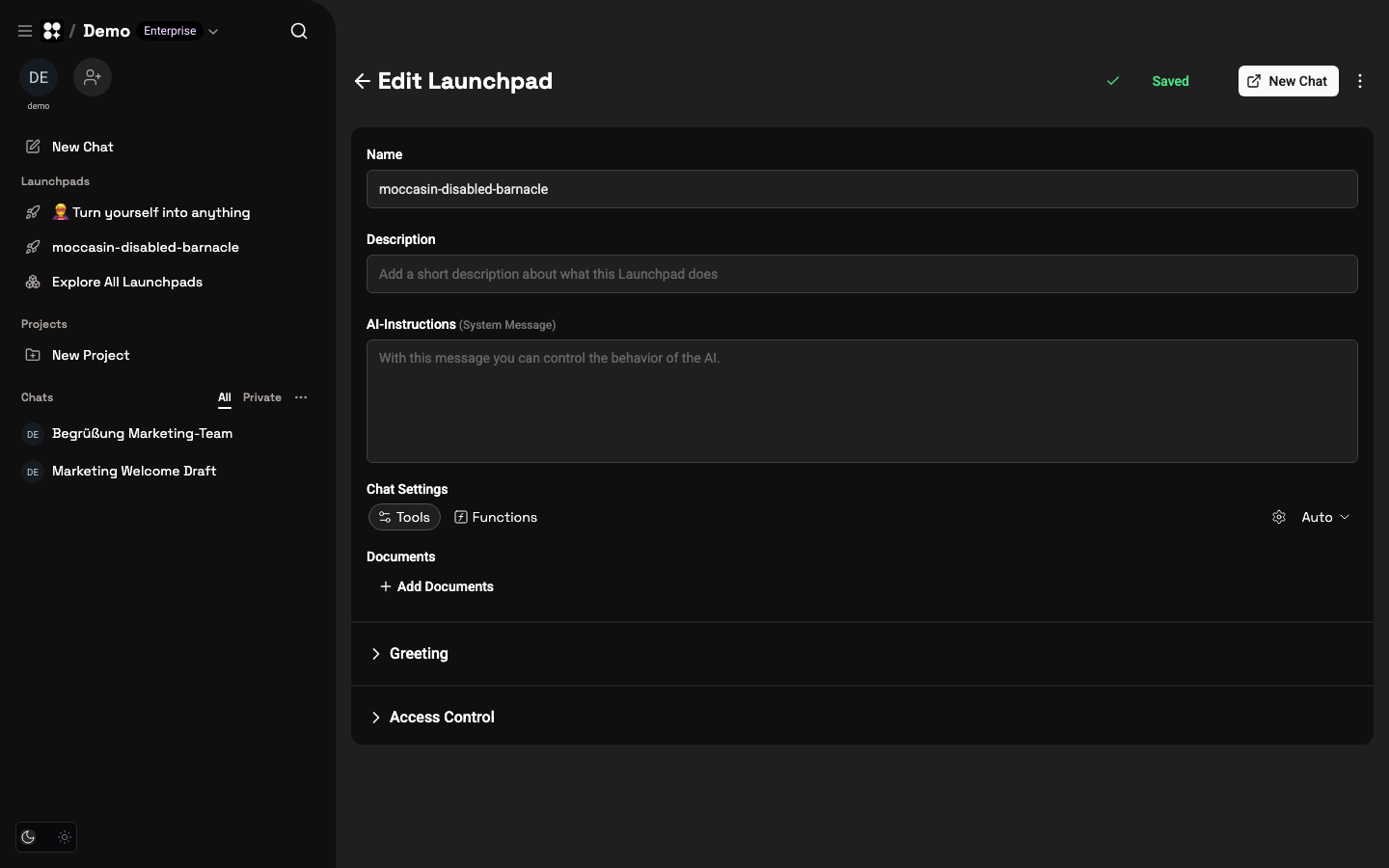
- 1On the Launchpads page, click Create New.
- 2Give the Launchpad a clear Name and a short Description so teammates know what it does.
- 3Write the AI Instructions that define its role and behavior.
- 4Open Chat Settings to choose the model and the tools the assistant may use.
- 5Optionally add Documents for background context the assistant can draw on.
- 6Set a Greeting and starter recommendations to guide new users.
- 7Configure Access Control to decide who can use, edit, or manage the Launchpad.
AI instructions
The AI Instructions are the system message that defines who the assistant is and how it should behave. This is the most important part of a Launchpad: the clearer and more specific your instructions, the better and more consistent the results.
Describe the assistant's role, the tone it should use, any rules it must follow, and the format you expect for answers. You can also reference attached Documents so the assistant grounds its replies in your own material.
Greeting and recommendations
A Greeting is the welcome message users see when they open the Launchpad. Use it to explain what the assistant does and how to get the best results from it.
You can also define first recommendations — predefined starter prompts shown alongside the greeting. These give new users an instant on-ramp: one click sends a ready-made question, so nobody has to figure out where to begin.
Model and settings
Under Chat Settings you choose the model the Launchpad uses and the tools it may call, such as web search or image generation. Pick a capable model for complex reasoning, or a faster one for high-volume, simple tasks.
Tools and behavior set here apply to every chat started from the Launchpad. For more on how models and tools work in a conversation, see Chat.
Permissions and sharing
Each Launchpad has its own access control, granted to individual users or groups at three levels:
- Viewer — can start chats with the Launchpad.
- Editor — can edit the configuration and delete the Launchpad.
- Owner — can manage permissions and the Launchpad itself.
Beyond the team, you can enable a public link so anyone can chat with the Launchpad without an account — ideal for embedding a chatbot widget on your website. To learn how roles work across the rest of the app, see Permissions.
Launchpads as agents
Mark a Launchpad as Callable as Agent to make it selectable as a function in ALL other Launchpads of this team. Enable the corresponding function in the calling Launchpad to use the agent for sub-tasks. This is independent of Cowork mode.
Anyone with access to a Launchpad that uses this agent can also use it, even if they have not been granted access through the agent Launchpad’s user and group permissions. Those access restrictions do not apply to this agent call.
This lets you compose specialists: for example, a research Launchpad can delegate fact-checking to a dedicated verification Launchpad, keeping each assistant focused on what it does best.
Budget control
Admins can set a maximum token budget per Launchpad for a given period. This keeps a popular or public assistant from consuming more than its share of the monthly team budget.
If a Launchpad exceeds its configured budget, it is automatically locked until the next period. For how token budgets work team-wide, see Billing.
Copyable Launchpads
You can allow a Launchpad to be copied by others. When a Launchpad is copyable, teammates can duplicate it to create their own version and adapt the instructions, model, or documents without changing the original.