




Permissions
Teampilot uses a simple, multi-level permission model so the right people can read, edit, or manage your work. The same three roles - Owner, Editor, and Viewer - apply to projects and launchpads, while chats are controlled by team and external access settings. This page explains every level and how access is inherited.
How access works
Access in Teampilot is layered. At the top, your team role (admin, member, or viewer) decides what you can do across the whole workspace. Inside the team, individual resources - projects, launchpads, and chats - carry their own permissions that say who may read, edit, or manage them.
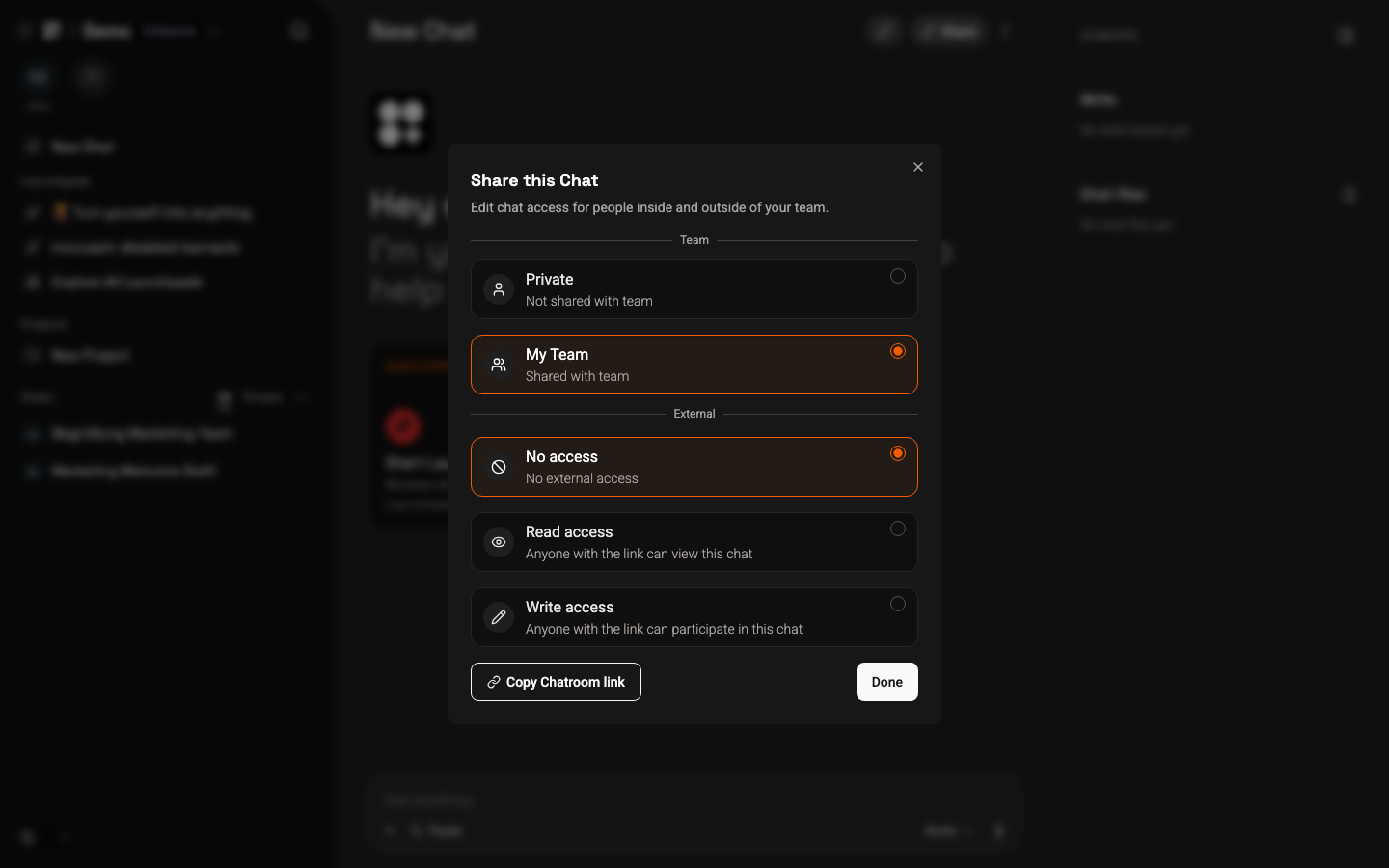
For projects and launchpads, the same three roles always apply: Owner, Editor, and Viewer. Chats use a slightly different model based on team access (Private, Team, or Project) and external access (No access, Read, or Write). You can read more about chat access on the Sharing page.
- Owner - full control, including managing permissions and deleting.
- Editor - can edit and delete the resource, but cannot manage who has access.
- Viewer - read-only or start-only access, depending on the resource.
Roles at a glance
The table below shows what each role can do per resource type. For chats, the relevant settings are the team and external access values rather than owner/editor/viewer.
| Level | Owner | Editor | Viewer |
|---|---|---|---|
| Project | Manage permissions, delete | Create/move chats, delete project | Read chats |
| Launchpad | Manage permissions | Edit and delete launchpad | Start chat |
| Chat (Team) | Private | Team | Project |
| Chat (External) | No access | Read | Write |
The Chat (Team) row lists the team access options - Private (only you), Team (everyone in the team), or Project (controlled by the parent project). The Chat (External) row lists the link-based external options - No access, Read, or Write - for people outside your team.
Inherited access
You rarely need to set permissions on every single chat. Access flows down automatically so that organizing your work also organizes who can see it.
- Chats inside a project automatically inherit that project's permissions. Add someone as an editor on the project and they can work with every chat inside it - no manual sharing required. See Projects.
- Chats started from a launchpad follow the access defined by that launchpad and the team member who started them. See Launchpads.
Users and groups
You can grant a role to a single person or to an entire group. Groups make access scale: add a colleague to a group and they immediately receive every permission that group holds, with no need to update each project or launchpad individually.
- 1Open the project or launchpad you want to share.
- 2Go to its access or permissions settings.
- 3Search for a user or group and pick a role - Owner, Editor, or Viewer.
- 4Repeat for any additional people or groups, then save.
To share an individual chat with teammates or external people instead, use the share dialog described on the Sharing page.
Team roles
Resource permissions sit on top of your team role, which sets the baseline for what you can do in the workspace.
- Admin - full access to all settings, including providers, billing, members, snippets, and integrations.
- Member - can create chats and work normally; uses a paid seat.
- Viewer - read-only access; free and does not consume a paid seat.
For inviting people, changing roles, and managing seats, see Team Management.