




Sharing & Collaboration
Every chat in Teampilot starts private to you, but sharing it takes only a couple of clicks. You can open a chat up to your whole team, control access through a project, or hand a read-only or editable link to people outside your team - all from one dialog. This page explains the access levels, real-time collaboration, and how to keep your chat list organized with pinning and archiving.
Overview
Teampilot has two independent layers of sharing for any chat. Team access decides which people inside your team can find and open the chat. External access lets you share a link with people who do not have a Teampilot account at all. You set both from the Share this Chat dialog, which you open from the share button at the top of any chat.
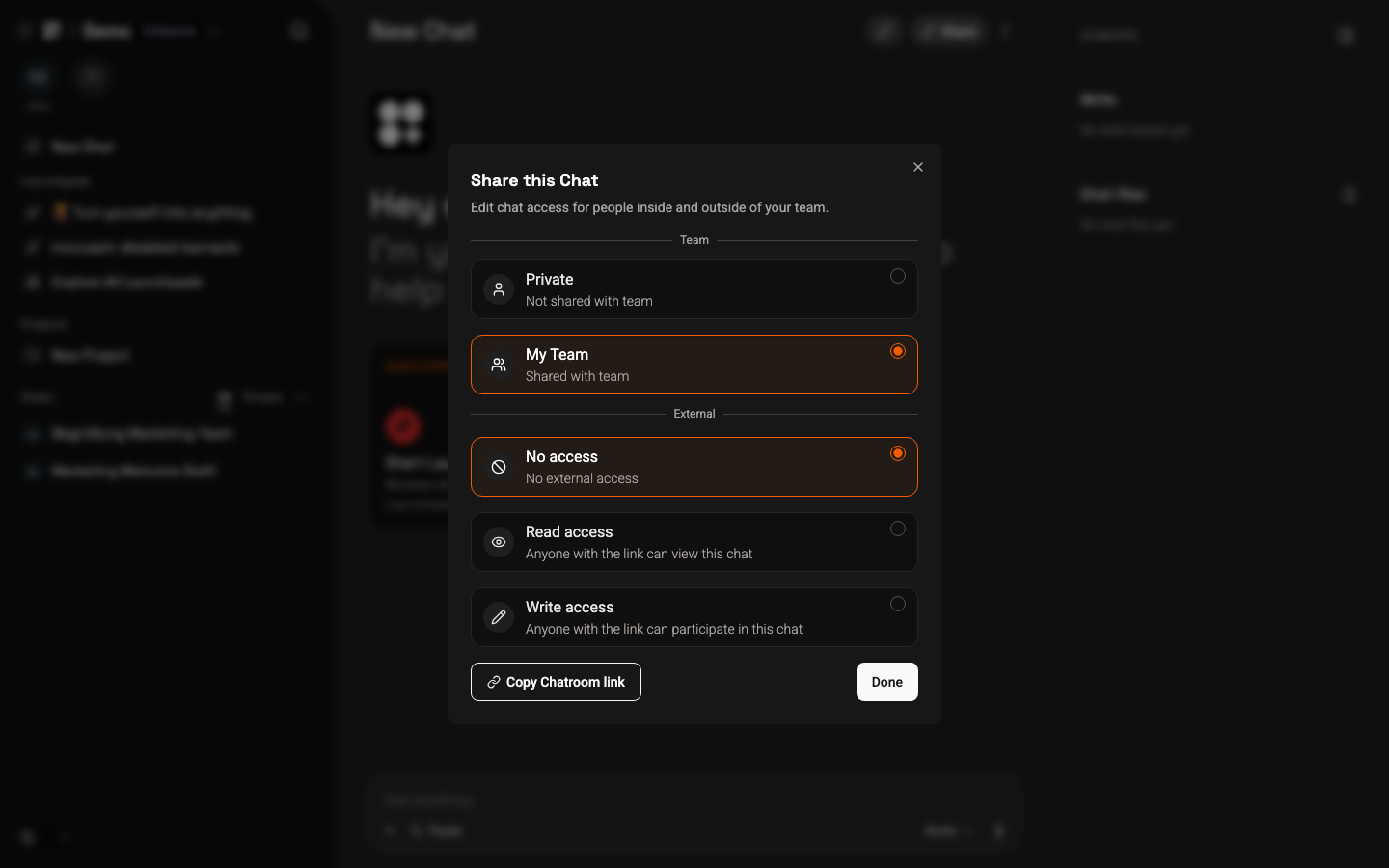
The two layers combine: a chat can be visible to your whole team and also reachable by an external read-only link at the same time. To open the dialog, click the share button in the chat header, choose your levels, and - if you are sharing externally - use Copy link to grab the URL.
Team access
Team access controls who inside your team can see and open a chat. You choose one level per chat in the Share dialog.
- Private - only you can see and open the chat. This is the default for every new chat.
- My Team - all members of your current team can find and open the chat.
- Project - the chat lives inside a project and inherits that project's access. Whoever can access the project can access the chat, at the role they hold there.
The Project level is the most powerful for ongoing work, because it ties chat access to your project structure instead of a single on/off switch. Move a chat into a project and it immediately follows the project's owner, editor, and viewer assignments. To learn how those roles work, see Permissions and Projects.
External access via link
External access lets you share a chat with people who are not in your team - clients, partners, or anyone with the link. Recipients do not need a Teampilot account; they just open the URL. You control how much they can do with one of three link levels.
- No access - the link is disabled and no external person can open the chat. This is the default.
- Read - anyone with the link can read the full conversation but cannot send messages.
- Write - anyone with the link can read the conversation and continue it by sending their own messages to the AI.
- 1Open the chat you want to share and click the share button to open the Share this Chat dialog.
- 2Under External, choose Read or Write depending on what recipients should be able to do.
- 3Click Copy link to copy the shareable URL.
- 4Send the link to your recipients. Set the level back to No access whenever you want to revoke it.
Real-time collaboration
Shared chats are live. When more than one person opens the same chat, everyone sees new messages and AI responses appear instantly, without needing to refresh.
- Presence - you can see who else is currently active in the same chat directly in the sidebar.
- Live updates - messages, edits, and streaming AI replies show up for every participant as they happen.
- Shared context - everyone works on the same conversation, so the AI keeps full context no matter who sent the last message.
This makes a chat a natural place to work through a problem together: one person can ask the AI a question, a teammate can branch off to explore an alternative, and both see the result. For more on editing and branching messages, see Chat.
Pin and archive chats
As you and your team create more chats, the sidebar can fill up quickly. Pinning and archiving keep your list focused on what matters now.
- Pin - keep an important or frequently used chat at the top of the sidebar so it is always within reach.
- Archive - move a finished conversation out of the main list to reduce clutter. Archived chats are not deleted; you can still find them later.
Pinning and archiving affect how chats appear in your sidebar. They are about organization and do not change a chat's sharing or permissions - a pinned team chat is still visible to your team, and archiving a chat does not revoke any access you granted.